 QR Code Scanner
To scan a QR code on iPhone, open a scanner (the Camera app or a QR scanner app), point it at the code, and hold steady for a second. The decoded link or content appears instantly — tap it to open. For barcodes, saved images, or scan history, use a dedicated scanner app.
QR codes are everywhere in 2026 — restaurant menus, parking meters, boarding passes, payment terminals, product packaging. More than 100 million Americans scan at least one QR code a year, and the iPhone gives you several ways to do it. Here are the three easiest, from the quickest built-in option to the most powerful.
Method 1: Use the built-in Camera app
- Open the Camera app and select the rear camera.
- Point it at the QR code so the whole square is visible in the frame.
- Wait for the yellow notification banner to appear, then tap it to open the link.
This works well for simple website QR codes. But the Camera app has real limits: it can't read product barcodes (UPC/EAN/ISBN), it keeps no history of what you scanned, it can't decode a code from a saved photo or screenshot while you're in the camera view, and if the yellow banner disappears before you tap it, you have to start over.
Method 2: Use the Code Scanner in Control Center
- Open Settings → Control Center and add Code Scanner to your controls.
- Swipe down from the top-right corner of the screen to open Control Center.
- Tap the Code Scanner icon and aim at the QR code.
The Code Scanner opens links directly in an in-app browser rather than Safari, which some people prefer. It still shares the Camera app's core limits, though — QR codes only, no history, no image scanning.
Method 3: Use a free QR scanner app (the most capable option)
A dedicated scanner does everything the built-in tools do, plus everything they can't. With the free QR Code Scanner * Barcode Reader app:
- Open the app. The scanner starts immediately — no ads, no sign-up.
- Point at any code. QR codes and barcodes are detected automatically, on paper or on screens. Tap the flashlight icon in low light.
- Act on the result. Links open, Wi-Fi networks connect, contacts save to your address book — and every scan is kept in history so you can find it again later.
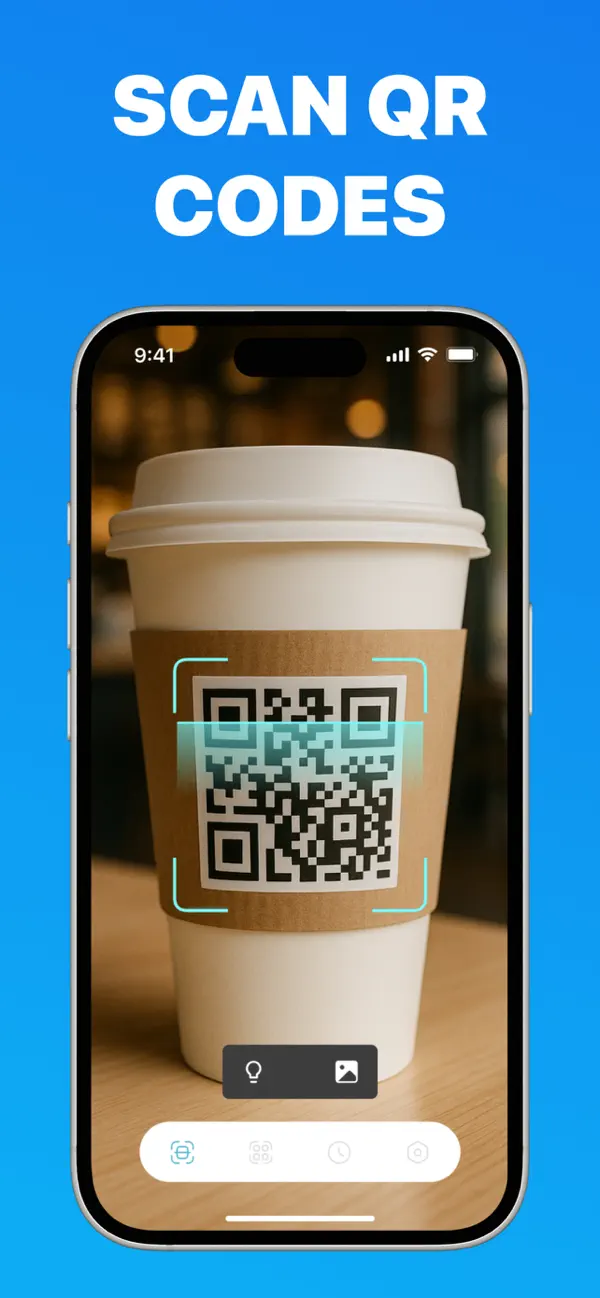
Why people switch to the app after trying the Camera:
- It reads barcodes too — scan any product to compare prices or check food ingredients.
- It scans from pictures — decode QR codes in screenshots and saved photos.
- It keeps history — never lose a scanned link again.
- It creates codes — generate your own QR codes with custom colors and logos.
- It works offline with no ads — scanning never waits for an ad.
Troubleshooting: QR code won't scan?
- Too dark: turn on the flashlight (built into the app's scan screen).
- Too close or too far: hold the phone 15–30 cm (6–12 in) from the code and let the camera focus.
- Glare or damage: tilt the phone slightly to avoid reflections; a torn or faded code may be unreadable.
- Camera setting off: check Settings → Camera → Scan QR Codes is enabled (for the built-in method).
Scan anything your camera can't
QR codes, barcodes, screenshots, low light — one free app handles them all. No ads, no sign-up.
Frequently asked questions
Why won't my iPhone scan a QR code?
The usual culprits are poor lighting, holding the phone too close, a damaged or low-contrast code, or the Camera's QR setting being turned off under Settings → Camera → Scan QR Codes. A dedicated scanner app with flashlight support usually reads codes the Camera app misses.
Can iPhone scan barcodes too, not just QR codes?
The built-in Camera app only reads QR codes. To read product barcodes (UPC, EAN, ISBN) — for example to look up prices or ingredients — you need a scanner app that supports 1D barcodes.
Do I need internet to scan a QR code?
No. Decoding happens on your device, so scanning works offline. You only need a connection to open a scanned link or use online features like product lookups.