 QR Code Scanner
The QR code on a router's label is a shortcut that does one of three things: it joins the router's default Wi-Fi network without typing the password, it identifies the router during setup in the manufacturer's app, or it opens a web link such as the app download or a setup video. Point your phone's camera at it and tap the prompt. If nothing useful happens, the code is probably a setup code for the router's app, or the Wi-Fi password has been changed since the label was printed.
Most home routers and mesh Wi-Fi points now ship with a small QR code on the label, next to the default network name (SSID) and password. What that code does depends on the manufacturer, which is why scanning it sometimes connects you instantly and sometimes seems to do nothing. This guide explains the three kinds of router QR code, how to scan each one, and what to do when the code no longer works.
What is the QR code on a router?
The QR code on a router is a printed shortcut for the router's default details: either the Wi-Fi network name and password, a setup ID for the manufacturer's app, or a link. Manufacturers use it so you don't have to type a long factory password on a phone.
| Kind of router QR code | What it contains | What you do with it |
|---|---|---|
| Wi-Fi join code | The default network name and password, as text starting with WIFI: | Scan with the phone camera and tap Join |
| App setup code | An ID or default details the manufacturer's app reads | Scan from inside the router's app during setup |
| Link | A web address, starting with https:// | Opens the setup app, a setup video or a support page |
Some examples from manufacturers' own documentation:
- TP-Link: the quick installation guide for the Archer AX50 says to scan the QR code on the product label to join the preset 2.4 GHz network directly, and a second QR code on the same guide opens TP-Link's setup videos (TP-Link Archer AX50 quick installation guide).
- NETGEAR: the router's QR code label carries the default Wi-Fi network name and network key, and you scan it in the Nighthawk app to set the router up (NETGEAR's router setup article).
- Google Nest Wifi: the QR code on the label on the bottom of each router or point is used to set the device up, scanned with your phone during setup (Google Nest Help on finding the QR code).
- ASUS ZenWiFi: you scan the QR code sticker from the ASUS Router App to start setup (ASUS's QR code setup FAQ).
A fourth, less common type is a Wi-Fi Easy Connect code from the Wi-Fi Alliance, which lets a phone or router add a device to the network by scanning the device's QR code. It is more common on smart-home devices than on the router itself.
Where is the QR code on a router?
The QR code is on the router's product label, which is usually on the bottom or the back of the router. TP-Link, NETGEAR and Google all place the label there, next to the printed default network name and password. On a mesh system, each unit has its own label and code. Some routers also print a QR code in the quick start guide in the box; that one is usually a link to the app or setup videos, not a Wi-Fi join code.
How do you scan the QR code on a router with an iPhone?
For a Wi-Fi join code, use the iPhone Camera app; for a setup code, scan from inside the router manufacturer's app. The Camera app recognizes Wi-Fi QR codes and offers to join the network.
- Open the Camera app in Photo mode, as described in Apple's iPhone User Guide page on scanning a QR code.
- Point it at the router label so the whole QR code is inside the frame. The label is small, so move the phone closer and tap the screen to focus if the code looks blurry.
- Tap the prompt that appears. For a Wi-Fi code it names the network; tap it, then tap Join. For a link, it opens the web page or App Store page.
- If no prompt appears, the code is most likely a setup code. Open the router maker's app (for example the Nighthawk, Google Home or ASUS Router app) and use its scan option during setup.
On Android, the steps are the same: open the Camera app or Google Lens, point it at the code and tap the prompt to connect.
How can you tell what a router QR code does before you use it?
Scan the router's QR code with a scanner app that shows the code's raw contents: text starting with WIFI: is a join code, text starting with https:// is a link, and anything else is a setup code for the manufacturer's app. The Camera app only offers an action, so it can't tell you why nothing happened.
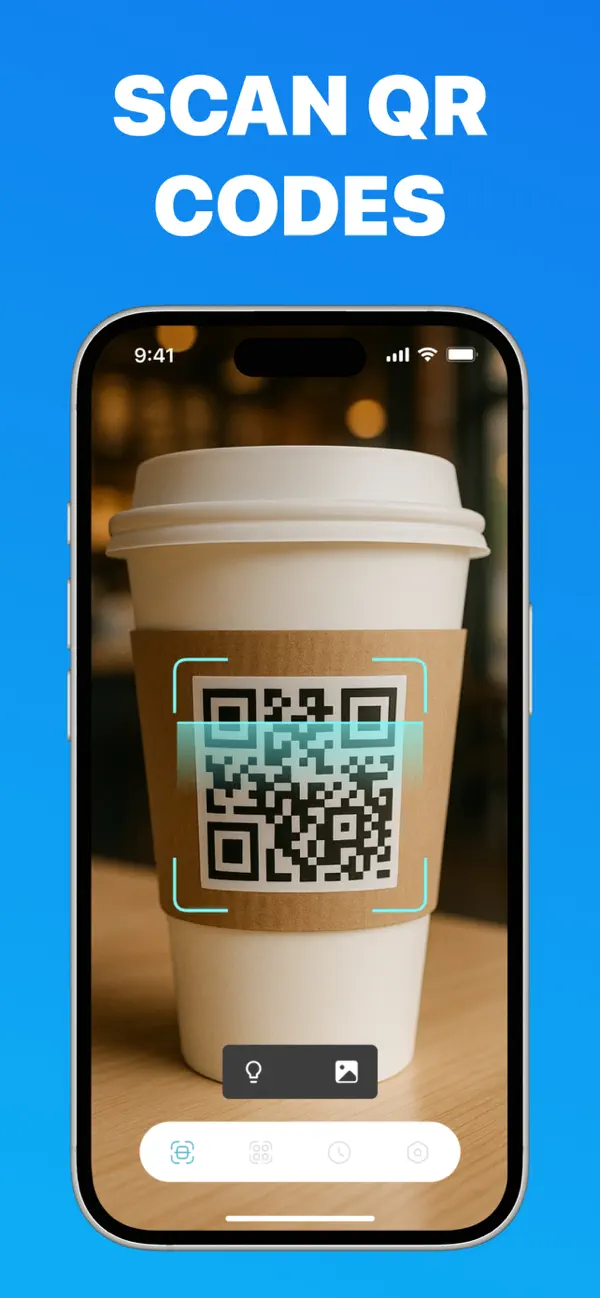
- Open a QR scanner app. The free QR Code Scanner * Barcode Reader app runs on iPhone and iPad with iOS 16 or later, has no ads, needs no account and scans offline, which helps when the router isn't online yet.
- Scan the code on the label. Turn on the flashlight button if the label is under a desk or in a dark cupboard.
- Read the result. A Wi-Fi code decodes to text like
WIFI:T:WPA;S:NetworkName;P:password;;, in the format documented in the ZXing project's Barcode Contents reference. The network name followsS:and the password followsP:.
Reading the code this way also gives you the default password as text, which you need for a smart TV, games console or computer that has no camera. A Windows 11 laptop or a Chromebook can join directly instead: see how to scan a Wi-Fi QR code on each device. Our guide to seeing the Wi-Fi password in a QR code explains every field.
Why doesn't the QR code on my router work?
A router QR code usually stops working because the network name or password was changed after the router was set up, while the printed code still holds the factory defaults. Check these in order:
- The Wi-Fi details were changed. If you, your installer or the setup app chose a new network name or password, the label can't update, so its code still points to the old default network.
- It's a setup code, not a join code. Codes like Google Nest's and ASUS's are read by the manufacturer's app. The phone camera may show nothing, or only text.
- It joins only one band. TP-Link's guides describe the label code as joining the preset 2.4 GHz network; join the 5 GHz network with its name and password from the label instead.
- The phone is out of range or the router hasn't finished starting. The code only carries the details; the phone still needs the router's signal.
- The label is damaged or too small to focus on. Clean it, add light, or type the name and password printed beside it.
Is the QR code on a router a security risk?
A router's Wi-Fi QR code is as sensitive as the default password printed next to it: anyone who can see the label can scan the code and join that default network. That is fine in your home, but less so if the router sits in a shop, office or rental where visitors can reach it.
We suggest changing the default Wi-Fi password during setup, which also makes the label code useless to anyone who photographs it. To let guests join the new network without typing, create a fresh code with our guide to making a Wi-Fi QR code for guests, ideally for a guest network if your router offers one.
See what's inside your router's QR code
Read Wi-Fi, link and setup codes before you use them, and create a new Wi-Fi QR code. Free, no ads, works offline.
Frequently asked questions
What is the QR code on my router for?
The QR code on a router label does one of three things, depending on the model: it joins the router's default Wi-Fi network, it identifies the router during setup in the manufacturer's app, or it opens a web link such as the setup app download or a setup video. Scan it with a QR scanner app that shows the code's contents to see which one you have.
Can I scan the QR code on my router to connect to wifi?
Yes, if the code is a Wi-Fi join code. Point the iPhone Camera or an Android camera at it and tap the network prompt to join. It only works while the router still uses the default network name and password printed on the label, and on many TP-Link routers it joins the 2.4 GHz network only.
Can I get the wifi password from the qr code on my router?
Yes, when the router's QR code is a Wi-Fi join code: it stores the default password as plain text after P: in a WIFI: string, and a scanner app that shows a code's contents displays it. The same default password is usually printed as text on the router label too.
Why won't the QR code on my router work?
A router QR code usually fails because the Wi-Fi name or password was changed after setup, so the printed code still holds the factory defaults. It also fails when the code is a setup code that only works inside the manufacturer's app, when you expect it to join a 5 GHz network it doesn't include, or when the phone is out of the router's range.
Does the qr code on the router change when I change the wifi password?
No. The QR code on a router label is printed at the factory and never changes, so after you change the Wi-Fi name or password it no longer connects anyone. To share the new network, create a new Wi-Fi QR code on your phone or in a QR generator app.