 QR Code Scanner
To scan a barcode from a picture or screenshot, open the image in Google Lens (in Chrome, the Google app or Google Photos), which reads the barcode and searches for the product. Without any extra app, copy the digits printed under the bars with Live Text on iPhone and search for them, or show the picture on another screen and scan it live with a barcode scanner app.
Barcodes turn up in pictures all the time: a product photo someone sends you, a screenshot from an online shop, a photo you took in a store to check later. The catch is that the barcode is now on your phone's screen, where your phone's camera can't see it. This guide covers the ways to read it from the image itself, on iPhone and Android, and what to do when it won't scan.
Can you scan a barcode from a picture?
Yes. A photo or screenshot of a UPC, EAN or ISBN barcode holds the same product number as the printed label, so any tool that reads barcodes in saved images can decode it. The phone's own camera can't do it, because the iPhone Camera app reads codes it sees in the live camera view, as Apple's iPhone User Guide page on scanning codes with the Camera describes, not codes in your photo library.
A product barcode also has its number printed in plain digits under the bars. That gives you a fallback that works on any phone, even when the picture is too blurry to decode.
You have four options, from quickest to most universal:
- Google Lens on the saved image (iPhone and Android).
- Live Text in the iPhone Photos app, to copy the printed digits.
- A second screen: show the picture on one device and scan it live with another.
- Type the number printed under the bars into a search engine.
How do you scan a barcode from a photo with Google Lens?
In Chrome or the Google app, tap Lens in the search bar, tap the Photo picker and choose the picture; Lens recognizes the barcode and shows search results for the product. Google Lens is free on iPhone and Android and needs an internet connection.
- Save the picture to your photo library, or take a screenshot of it.
- Open Chrome and start a new tab (or open the Google app).
- Tap Lens in the search bar.
- Tap the Photo picker at the bottom left and choose the image with the barcode.
- Check the results. If the picture shows more than the barcode, drag the corners of the selection box around the bars, then swipe up to see the product results.
Google describes the Photo picker upload and barcode search in its help page on searching with Google Lens in Chrome on iPhone and iPad.
If your photos are in Google Photos, open the picture, tap More, then Google Lens. Google's page on getting info about your photos with Lens lists using a barcode to find information about a product, such as where to buy it, and notes that shopping results are offered only in some countries, the United States and the United Kingdom among them. The Google Photos steps are the same on Android.
Can the iPhone read a barcode in a photo without an app?
Not the bars themselves: Apple doesn't document reading product barcodes from photos. But Live Text in the Photos app can copy the digits printed under the barcode, and those digits are the product number. Searching that number gives the same result as scanning it.
- Open the picture in the Photos app.
- Tap the Detect Text button, or touch and hold the digits under the bars.
- Select the number and tap Copy. Most product barcodes have 12 digits (UPC-A) or 13 digits (EAN-13 and ISBN).
- Paste the number into Safari's search bar or a shop's search box.
Apple's iPhone User Guide explains that Live Text recognizes text in your photos and images so you can copy, share or translate it. Live Text reads printed characters, not the pattern of bars, so it works only when the digits are visible and legible in the picture. If they're cut off or too small, use Google Lens or the second-screen method instead.
How do you scan a barcode picture from a second screen?
Open the picture full screen on one device, such as a computer, tablet or another phone, and point a barcode scanner app on your iPhone at it; the app reads the barcode exactly as it would on a package. This is often the most reliable method for product barcodes, because the scanner sees a large, sharp image.
On iPhone and iPad, our free app QR Code Scanner * Barcode Reader (iOS 16 or later, no ads, no registration) reads UPC, EAN and ISBN barcodes with the camera:
- Show the barcode picture full screen on the other device and turn its brightness up.
- Open the app and point the iPhone's camera at the screen, about 15 cm (6 in) away.
- Tilt the iPhone slightly if the screen reflects light across the bars.
- Read the result. The app shows the product number and, when you're online, looks up the product, including prices from several retailers and, for food, the Nutri-Score.
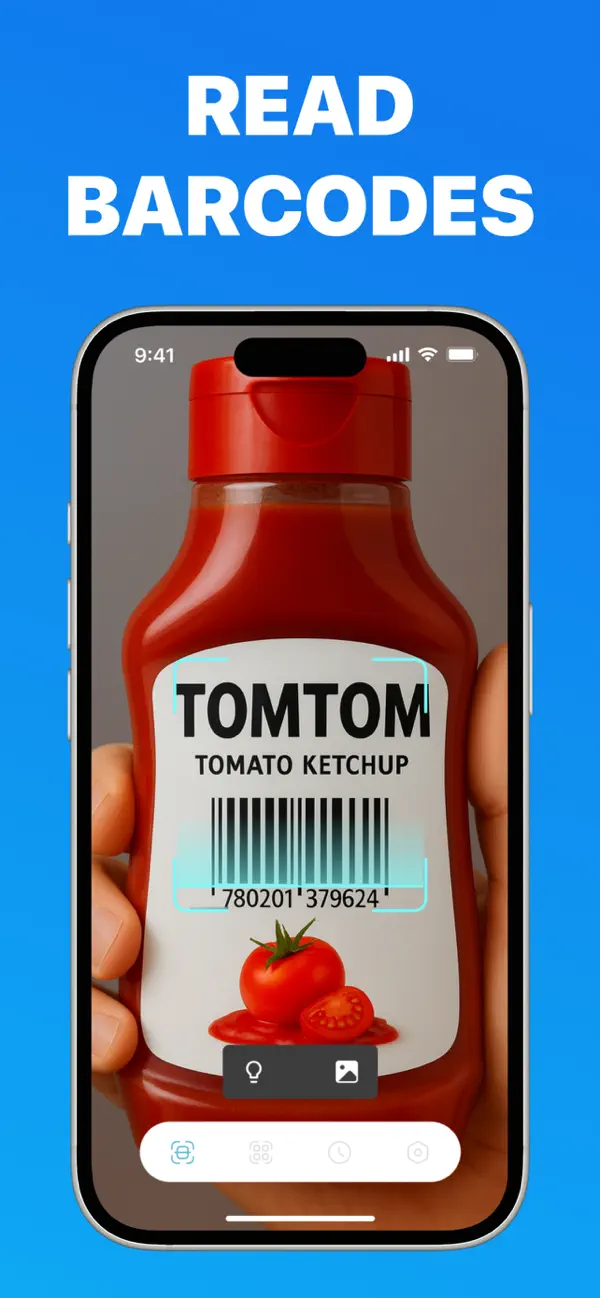
The app's scan-from-image button is built for QR codes saved in your photos (see how to scan a QR code from a screenshot or picture). For a product barcode in a picture, the live camera on a second screen or Google Lens are the dependable routes.
Which method should you use to scan a barcode from an image?
Use Google Lens if you have Chrome, the Google app or Google Photos; Live Text when you only need the number; and a second screen with a scanner app when you want product details, prices or food scores.
| Method | What you need | Good to know |
|---|---|---|
| Google Lens | Chrome, the Google app or Google Photos | Reads the bars in the saved image; needs internet; gives web and shopping results |
| Live Text (iPhone Photos) | Nothing extra | Copies the printed digits, not the bars; the digits must be readable |
| Second screen + scanner app | Another screen and a barcode scanner app | Reads the barcode like a real package; QR Code Scanner * Barcode Reader adds prices and food scores |
| Type the number | The digits under the bars | Works on any phone or computer, even with a blurry photo |
Why won't a barcode in a picture scan?
A barcode in a picture fails to scan when the ends of the bars or the blank margins beside them are cut off, when the bars are blurred, or when glare hides part of the code, because a scanner has to see every bar and space from one edge to the other. Try these fixes:
- Keep the white space on both sides. Barcodes need a blank margin, the quiet zone, on the left and right. For a UPC-A barcode, GS1 US says it must be at least nine times the width of the narrowest bar, as its UPC-A barcode guidance explains. Crop loosely, never tight to the bars.
- Shoot straight on. A barcode photographed at a steep angle squeezes the bars at one end. Hold the phone parallel to the label.
- Avoid blur and glare. Tap to focus before you take the photo, and tilt away from lights that reflect on glossy packaging.
- Make the barcode bigger in the frame. Zoom in on the picture and take a fresh screenshot, so the bars fill most of the width.
- Don't use a cut-down barcode. GS1 US warns that shortening a barcode's height makes it harder to scan; a screenshot of only a thin strip of bars may not decode.
- Fall back to the digits. If nothing reads the bars, type the 12 or 13 digits printed underneath into a search engine.
A barcode identifies the product, not its price: a product barcode doesn't contain the price, so any price you see comes from a store's or app's lookup. For scanning barcodes on real packages, see how to scan a barcode on iPhone.
Scan barcodes and look up products
UPC, EAN and ISBN barcodes with prices from several retailers, Nutri-Score for food and ingredient checks for cosmetics. Free, no ads, no sign-up.
Frequently asked questions
How do I scan a barcode from a picture on my iPhone?
Open Google Lens in Chrome or the Google app, tap the Photo picker and choose the picture; Lens recognizes the barcode and shows search results for the product. You can also copy the digits printed under the bars with Live Text in the Photos app and search for that number.
Can you scan a barcode from a screenshot?
Yes. A screenshot of a UPC or EAN barcode contains the same product number as the printed label, so a tool that reads barcodes in saved images, such as Google Lens, can decode it as long as the whole barcode is sharp and not cut off.
Can Google Lens scan a barcode from a photo?
Yes. Google Lens can use a barcode to find information about a product, and in Chrome, the Google app or Google Photos you can open Lens on a saved photo instead of using the camera. Lens needs an internet connection to show results.
How do I scan a barcode in a photo without downloading an app?
Read the 12 or 13 digits printed under the bars, or copy them with Live Text in the iPhone Photos app, and type the number into a search engine. The digits are the same product number the bars encode, so you get the same result as a scan.
Why won't a barcode in my photo scan?
A barcode in a photo usually fails because the ends of the bars or the blank margins beside them are cut off, the bars are blurred, or glare covers part of the code. Take a sharper, straight-on photo that shows the whole barcode with white space on both sides, or type the printed digits instead.