 QR Code Scanner
A Wi-Fi QR code stores the network name and the password as plain text, so you can read the password in two ways. Scan the code with a QR scanner app that shows the code's contents, or join the network with the iPhone Camera and then open Settings → Wi-Fi → ⓘ → Password (iOS 16 and later). On Android, the Wi-Fi Share screen shows the code for a saved network, and many phones also print the password beneath it.
Someone hands you a Wi-Fi QR code, your phone joins the network, and you still don't know the password, which you need for a laptop, a smart TV or a games console that has no camera. (A Windows 11 laptop or a Chromebook can scan a Wi-Fi QR code with its own camera; a Mac can't.) The good news: the password is inside the QR code, and both iPhone and Android can show it to you. Here is how the code stores it and the exact steps for each phone.
Is the Wi-Fi password stored inside the QR code?
Yes. A Wi-Fi QR code contains the network name (SSID), the security type and the Wi-Fi password written out as readable text, not encrypted. Any app that shows the raw contents of a QR code will show the password.
Wi-Fi QR codes follow a short text format documented by the open-source ZXing barcode project's Barcode Contents reference. A typical Wi-Fi QR code decodes to text like this:
WIFI:T:WPA;S:HomeNetwork;P:sunflower42;;
| Field | Meaning | In the example |
|---|---|---|
S: | Network name (SSID). Required. | HomeNetwork |
P: | The Wi-Fi password | sunflower42 |
T: | Security type: WPA, WEP, WPA2-EAP or nopass for an open network | WPA |
H: | Optional. true if the network name is hidden | not set |
The password is everything after P: up to the next unescaped semicolon. If the password itself contains a backslash, semicolon, comma, colon or double quote, the QR code puts a backslash in front of that character, so P:pass\;word means the password is pass;word. A code with T:nopass has no password at all: the network is open.
How do you see the Wi-Fi password from a QR code on iPhone?
On iPhone, either scan the Wi-Fi QR code with a scanner app that shows its contents, or join the network with the Camera app and then reveal the saved password in Settings. The Camera app itself only offers to join the network; it does not display the password.
Method 1: Read the password with a scanner app (no need to join)
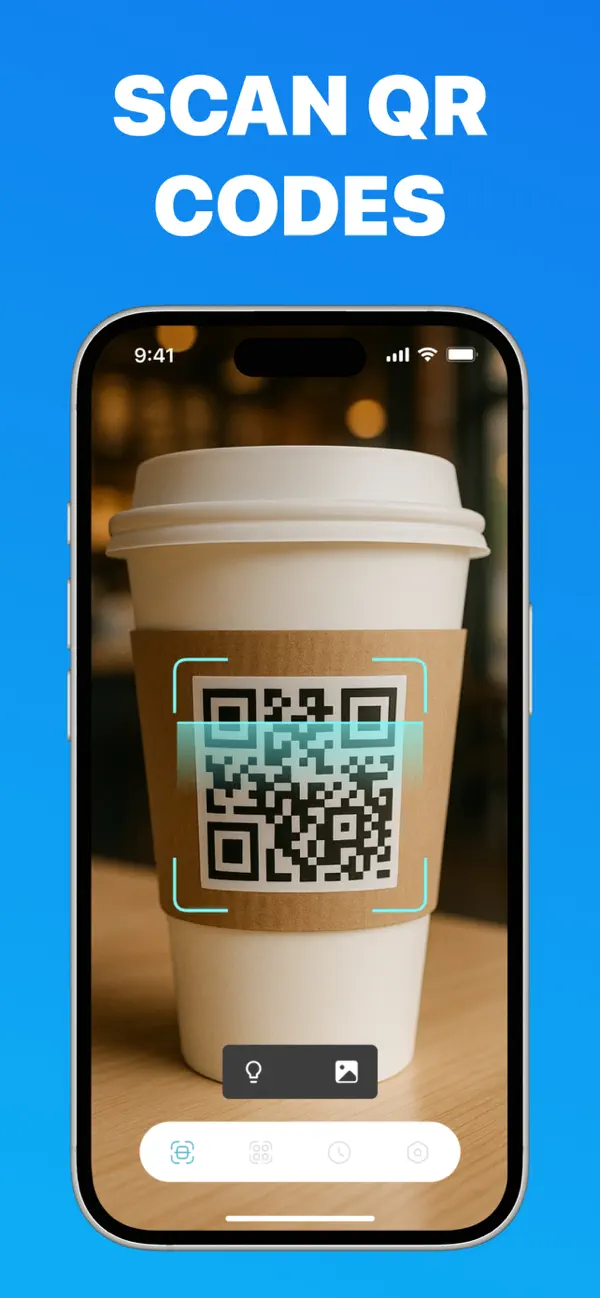
- Open a QR scanner app. The free QR Code Scanner * Barcode Reader app reads Wi-Fi QR codes on iPhone and iPad running iOS 16 or later, works offline and needs no account.
- Point the camera at the Wi-Fi QR code. Hold the phone steady so the whole square is in the frame.
- Read the result. The app shows what's in the code, which for a Wi-Fi code means the network name and the password stored in it. Copy the password from there to type it on another device.
Method 2: Join with the Camera, then reveal the password in Settings (iOS 16 and later)
- Open the Camera app and point it at the Wi-Fi QR code.
- Tap the yellow network banner that appears, then tap Join. The iPhone connects and saves the network.
- Open Settings → Wi-Fi and tap the ⓘ button next to the network you just joined.
- Tap the Password field and confirm with Face ID, Touch ID or your passcode. The password appears in plain text, and you can tap Copy.
These steps come from Apple's guide to finding saved Wi-Fi passwords on iPhone or iPad, which requires iOS 16 or iPadOS 16.1 or later. For a network you joined earlier but aren't connected to now, go to Settings → Wi-Fi, tap Edit in the upper-right corner, then tap ⓘ next to the network. On iOS 18 and later you can also open the Passwords app, tap Wi-Fi and choose the network. On iOS 15 and earlier, the iPhone doesn't show saved Wi-Fi passwords, so use Method 1.
How do you get the Wi-Fi password from a QR code on Android?
On Android, scan the Wi-Fi QR code to join the network, then open the network's Share screen in Settings to see the code and, on many phones, the password in text. Android 10 and later support Wi-Fi sharing by QR code.
- Scan the Wi-Fi QR code with the Camera app or Google Lens and tap the prompt to connect.
- Open Settings → Network & internet → Internet (the path on Google Pixel phones).
- Tap the gear icon next to the network, then Share, and verify with your fingerprint, face or PIN.
- Read the password. The Share screen shows a QR code for the network; on Pixel and many other Android phones the password is printed underneath. Samsung Galaxy phones show the QR code only, so scan that code with a QR scanner app that shows its contents.
The Pixel menu names are from Google's Pixel Phone Help page on sharing a Wi-Fi network. Other phone makers use similar wording, for example Settings → Connections → Wi-Fi on Samsung.
Can you get the Wi-Fi password from a QR code screenshot?
Yes. A screenshot or photo of a Wi-Fi QR code holds the same password as the printed code, so a scanner app that can read QR codes from images will show it. In QR Code Scanner * Barcode Reader, tap the scan-from-image button and pick the screenshot from your photo library. Our guide on scanning a QR code from a picture or screenshot covers the other ways to do it on iPhone.
Why won't a Wi-Fi QR code connect or show the right password?
A Wi-Fi QR code that fails usually holds an old password or a formatting mistake, because the code is a fixed snapshot of the network details at the moment it was created. Check these in order:
- The password changed. If the router's password was changed after the code was printed, the code still holds the old one. The same goes for the QR code printed on a router label, which keeps the factory password. Ask for a new code.
- Special characters weren't escaped. A password containing
;or:that the generator didn't escape with a backslash gets cut short. Compare the decoded text with the router label. - The network name doesn't match. The SSID in the code must match the network exactly, including capital letters and spaces.
- The network is hidden. A hidden network needs
H:truein the code. Without it, some phones don't find the network. - You're out of range. The code only carries the details; the phone still has to see the network's signal.
See what's inside any QR code
Scan Wi-Fi, link and contact codes, from the camera or a screenshot. Free, no ads, works offline.
Frequently asked questions
How do I see the Wi-Fi password from a QR code on my iPhone?
Scan the Wi-Fi QR code with a QR scanner app that shows the code's contents, and the password appears as text. Or join the network with the Camera app, then open Settings, Wi-Fi, tap the info button next to the network and tap the Password field; this needs iOS 16 or later and Face ID, Touch ID or your passcode.
Is the Wi-Fi password visible in a QR code?
Yes. A Wi-Fi QR code stores the network name, the security type and the password as readable text in a format like WIFI:T:WPA;S:NetworkName;P:password;; so any scanner that shows a code's raw contents shows the password after P:.
Can you get a wifi password from a qr code without connecting to the network?
Yes. A QR scanner app that displays what is inside the code shows the password straight away, without joining the network. The iPhone Camera app can't do this: it only offers to join, and the password is visible in Settings only after the iPhone has connected.
How do I turn a wifi qr code into the password on Android?
Scan the code to connect, then open Settings, Network and internet, Internet, tap the gear icon next to the network and tap Share. On Pixel and many other Android phones the password is printed under the QR code; Samsung Galaxy phones show only the code, which you can scan with a QR scanner app to read the password.
Why does a Wi-Fi QR code not work anymore?
A Wi-Fi QR code holds the details from the moment it was created, so it stops working when the router's password or network name changes. It can also fail if special characters in the password weren't escaped or the network is hidden; ask the network owner for a new code.