 QR Code Scanner
You don't need a special Wi-Fi QR code scanner. The Camera app on an iPhone, on most Android phones, on a Windows 11 PC and on a Chromebook reads a Wi-Fi QR code and offers to join the network: open the camera, point it at the code and tap the prompt. A scanner app helps with two things the camera doesn't do: showing the password stored in the code, and reading a Wi-Fi QR code from a screenshot.
A Wi-Fi QR code on a café table, a rental's welcome sheet or a friend's phone holds the network name and password, so a device that scans it can join without typing. Which scanner to use depends on the device in your hand. Below are the steps for each one, what to do on a Mac, and the cases where a scanner app is the better tool.
What is a Wi-Fi QR code scanner?
A Wi-Fi QR code scanner is any camera or app that reads the network name, security type and password stored in a Wi-Fi QR code and hands them to the device's Wi-Fi settings. Most current phones and laptops have one built in.
A Wi-Fi QR code holds a short line of text such as WIFI:T:WPA;S:CafeGuest;P:latte2026;;, a format described in the open-source ZXing project's Barcode Contents reference. A scanner that recognizes the WIFI: prefix offers to join the network instead of showing the text.
| Device | Built-in Wi-Fi QR code scanner | What happens after the scan |
|---|---|---|
| iPhone, iPad | Camera app, or the Scan Code control in Control Center | A prompt offers to join the network |
| Android phone | Camera app; on many phones also a scan icon in Wi-Fi settings | A prompt offers to connect |
| Windows 11 PC | Camera app in barcode mode | A link opens Settings, where you confirm the network |
| Chromebook | Camera app: Scan, then QR code | A Wi-Fi connection prompt appears |
| Mac | None in the Wi-Fi menu | Read the password on a phone and type it |
How do you scan a Wi-Fi QR code on iPhone or iPad?
On iPhone and iPad, open the Camera app, point it at the Wi-Fi QR code and tap the network prompt that appears to join. No extra app is needed.
- Open the Camera app and stay in Photo mode.
- Hold the iPhone so the Wi-Fi QR code is inside the frame. You don't press the shutter.
- Tap the network prompt that appears on screen, then tap Join.
You can also scan from Control Center: open Control Center, tap the Scan Code control and point the iPhone at the code. If the control isn't there, add it to Control Center first. Both methods are described in Apple's iPhone User Guide page on scanning a QR code, which also notes that you can tap the flashlight to add more light. Our guide to scanning a QR code on iPhone covers both methods in more detail.
How do you scan a Wi-Fi QR code on Android?
On most Android phones, open the Camera app, point it at the Wi-Fi QR code and tap the prompt to connect. The wording of the prompt varies by phone maker.
- Open the Camera app and point it at the Wi-Fi QR code.
- Tap the prompt showing the network name to connect.
- If the camera shows nothing, scan from Wi-Fi settings. On a Google Pixel, open Settings → Network & internet → Internet, scroll to Add network and tap the QR code icon next to it. Samsung Galaxy phones have a similar scan icon on the Settings → Connections → Wi-Fi screen.
Android creates these codes itself: Google's Android Help page on connecting to Wi-Fi networks describes the Share screen of a saved network, which shows a QR code that another device scans to join the same network.
How do you scan a Wi-Fi QR code on a Windows 11 laptop?
On a Windows 11 PC with a camera, open the Camera app, switch to barcode mode and point the camera at the Wi-Fi QR code; the link that appears opens Settings, where you confirm the network.
- Open the Camera app and select the barcode mode icon to switch from photo mode to barcode mode.
- Point the camera at the Wi-Fi QR code. With a laptop webcam, hold the printed code or the phone showing it up to the camera.
- Select the link that appears in the Camera app. Settings opens.
- Confirm that you want to add and connect to the Wi-Fi network. You can also choose whether the PC connects automatically when the network is in range.
These steps are from Microsoft's support page on connecting to a Wi-Fi network in Windows. Microsoft lists them for Windows 11 only; its Windows 10 instructions have no QR code option, so on Windows 10 choose the network from the Wi-Fi list and type the password.
How do you scan a Wi-Fi QR code on a Chromebook?
On a Chromebook, open the Camera app, select Scan, then QR code, and hold the Wi-Fi QR code inside the viewfinder until the Wi-Fi connection prompt appears.
- Open the Camera app on the Chromebook.
- Select Scan, then QR code at the bottom of the screen.
- Hold the Wi-Fi QR code inside the viewfinder and select the Wi-Fi connection prompt that appears.
Google's Chromebook Help page on camera features lists a URL, text or a Wi-Fi connection prompt as the results of a QR code scan.
Can a Mac scan a Wi-Fi QR code?
A Mac has no Wi-Fi QR code scanner in its Wi-Fi menu: Apple's instructions for joining a network on a Mac are to choose the network from the Wi-Fi menu and enter its password. Those steps are in Apple's Mac User Guide page on connecting to the internet using Wi-Fi.
To get a Mac, a desktop PC without a camera, a smart TV or a games console onto the network, read the password out of the code with a phone and type it. A Wi-Fi QR code stores the password as readable text; our guide on seeing the Wi-Fi password from a QR code shows how on iPhone and Android.
How do you scan a Wi-Fi QR code that is on your own phone screen?
A phone's camera can't point at its own screen, so save the Wi-Fi QR code as a screenshot and open that image in a scanner that reads QR codes from pictures. This comes up when the code arrives in a message, an email or a booking confirmation.
In QR Code Scanner * Barcode Reader, tap the scan-from-image button and choose the screenshot from your photo library. The other ways to do it on iPhone are in our guide to scanning a QR code from a picture or screenshot.
When do you need a Wi-Fi QR code scanner app?
A Wi-Fi QR code scanner app is worth using when you want to see what is inside the code, not only join the network. The built-in cameras connect and stop there. A scanner app covers three more cases:
- You need the password as text for a device that can't scan, such as a Mac, a TV or a console.
- The code is a screenshot or a photo on the same phone.
- You want to check the code before joining. Seeing the network name first tells you whether the code belongs to the network you expect. We suggest doing this with codes posted in public places.
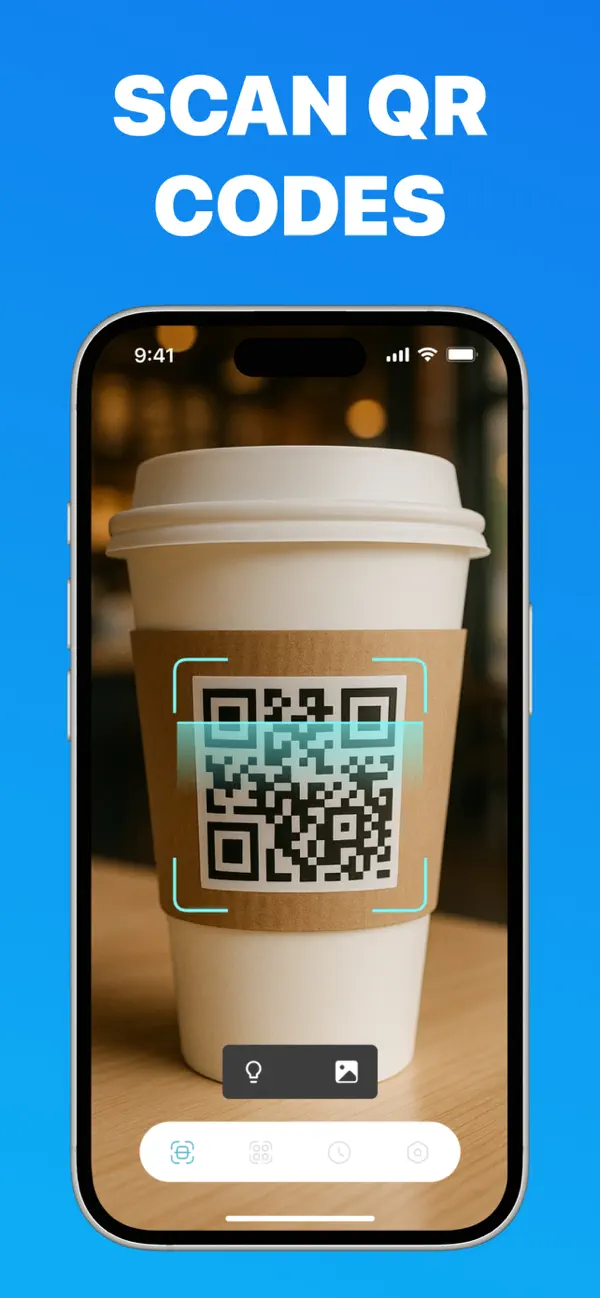
The free QR Code Scanner * Barcode Reader app for iPhone and iPad (iOS 16 or later) reads Wi-Fi QR codes from the camera or from a saved image and shows the network details stored in them. Scanning works offline, and the app has no ads and needs no account.
Why won't my camera scan the Wi-Fi QR code?
A camera that ignores a Wi-Fi QR code usually can't see the whole code clearly, has QR scanning switched off, or is looking at a code that isn't a Wi-Fi code. Check these in order:
- Distance, glare and damage. Fit the whole square in the frame, tilt the code away from reflections and add light. A torn or smudged code may not read.
- QR scanning is off on the iPhone. Open Settings → Camera and turn on Scan QR Codes.
- The code isn't a Wi-Fi code. Some codes open a web page or a router maker's setup app instead of joining a network; see what the QR code on a router can contain.
- The scan works but the device won't connect. The code probably holds an old password or a misspelled network name. Our Wi-Fi QR code guide lists the causes and how to make a new code.
- There is no barcode mode in the Windows Camera app. Microsoft documents the Wi-Fi QR code steps for Windows 11 only.
Scan any Wi-Fi QR code
Read Wi-Fi, link and contact codes from the camera or a screenshot. Free, no ads, works offline.
Frequently asked questions
Do I need a Wi-Fi QR code scanner app to connect to Wi-Fi?
No. The Camera app on an iPhone, on most Android phones, on a Windows 11 PC and on a Chromebook reads a Wi-Fi QR code and offers to join the network. A scanner app is only needed to see the password stored in the code or to read a Wi-Fi QR code from a screenshot.
How do I scan a wifi qr code on my iPhone?
Open the Camera app in Photo mode, hold the iPhone so the Wi-Fi QR code is inside the frame, tap the network prompt that appears and tap Join. The Scan Code control in Control Center does the same thing.
How do I scan a wifi qr code on a laptop with Windows 11?
Open the Camera app on the Windows 11 laptop, select the barcode mode icon, and hold the Wi-Fi QR code in front of the camera. Select the link that appears; it opens Settings, where you confirm that you want to add and connect to the network.
Is there a qr scanner for wifi that shows the password?
Yes. A Wi-Fi QR code stores the password as readable text, so a QR scanner app that displays a code's contents shows it. QR Code Scanner * Barcode Reader for iPhone and iPad reads Wi-Fi QR codes and shows the network name and password stored in them.
Can a Mac or a desktop PC without a camera scan a Wi-Fi QR code?
No. A computer without a camera can't scan a code, and the Wi-Fi menu on a Mac asks for a typed password. Scan the Wi-Fi QR code with a phone scanner app that shows the code's contents, read the password and type it on the computer.